
Tasks — Concepts & Operations
In this page:
take a look at what is possible to do on a task setup
- Key concepts
- Properties (task setup)
- Notifications
- Contexts
- Create a task · Run a task
- Track executions
- Find & manage tasks (global list)
- Modify a task
- Duplicate a task
Key concepts
- Task – Runnable entity that references a Job/Version and a Context.
- Context – Key/value parameters the job runs with (e.g., endpoints, credentials).
- Overrides – Per-task key/value changes that supersede the selected context.
- Ack (Acknowledgement) – After a failure, require a manual “ack” before resuming schedules.
- Purge – Per-task retention to keep storage and UI fast.
- Scheduler – Engine that triggers runs (supports sub-minute intervals).
Properties (task setup)
Go to Task setup to configure the fields below.
| Field | What it does | Defaults / Rules | Notes & best practices |
|---|---|---|---|
| Name | Human-readable identifier. | ^[A-Za-z0-9_-]{1,255}$ | Keep it unique per project (e.g., Orders_Import_Prod). |
| JVM parameters | Memory settings used by the job runtime. | Shown (e.g., -Xms256M -Xmx1024M). | Comes from the job. To change, edit the job/version, not the task. |
| Job version | Which packaged version runs. | — | Use pinned version or enable Follows last job version. |
| Follows last job version | Always run the newest version available at trigger time. | Off by default. | Pair with replication checks to ensure slaves are up-to-date; see eac:check-jobversion-deployment. |
| Scope | Free-text label to organize/filter in UI. | — | Purely organizational (e.g., Billing, Prod). |
| Enable parallel launch | Allow concurrent executions of the same task. | Off (recommended). | Enable only if the job is idempotent and downstreams tolerate overlap. |
| Log warning for parallel launch attempt | Log when a trigger is refused due to an ongoing run (if parallel is off). | Off. | Good for auditing missed/blocked triggers. |
| Enable acknowledgement (Ack) | After a failure, pause schedules until an operator acks the incident. | Off. | Use for critical pipelines. Ack does not delete logs; it unblocks and records who/when/why. |
Notifications
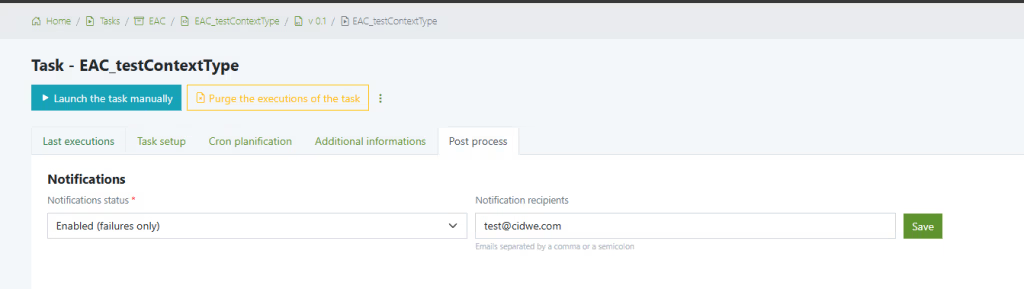
Notification status
Notification settings are available in the Post-process tab.
- Disabled — No emails sent.
- Enabled (failures only) — Email on failed/blocked/aborted runs.
- Enabled — Email on every run (success + failure).
Notification recipients
Comma or semicolon-separated list of emails. Spaces are ignored; duplicates are removed.
Examples:
ops@example.com; oncall@example.com
dev1@example.com,dev2@example.com;qa@example.com
Behavior
If status ≠ Disabled and the recipient list is empty/invalid, the run is logged with a notification warning (no email sent).
Contexts
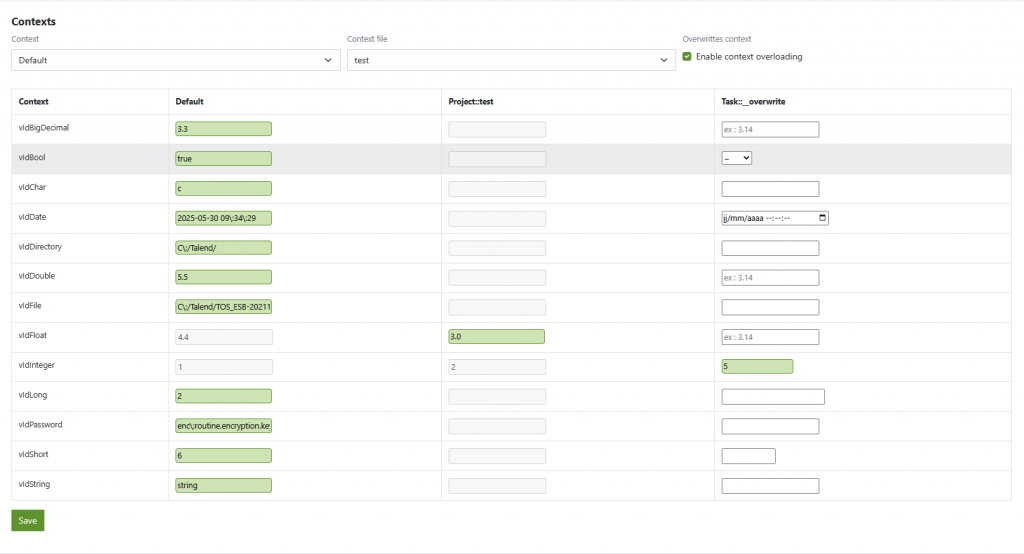
Each task exposes all contexts defined in the Talend job at build time (e.g., Default, QA, Prod). You pick one and may override specific keys.
Precedence (last wins)
- Selected context — the context chosen in the Context dropdown.
- Task overrides — values you enter in Task::__overwrite.
Important: Don’t forget to enable Enable context overloading; otherwise, context overrides in Task::__overwrite won’t take effect.
Guidance
- Choose a custom context when you need a full alternative set.
- Use overrides for a few keys specific to this task.
- For deeper advice, see Good use of context.
Create a task
A task is the link between a job and an execution context.
When you deploy a job for the first time, EAC prompts you to create a task. You can also create tasks later from any job.
Procedure
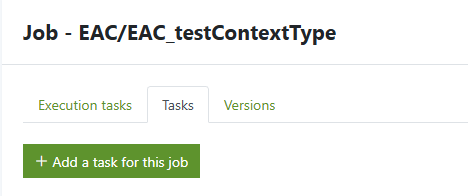
- Open the jobs’s page select the job and click Tasks tab.
- Click the button [Add a task for this job]
- From the job page click Versions tab, click the + (Create a new task) action button.
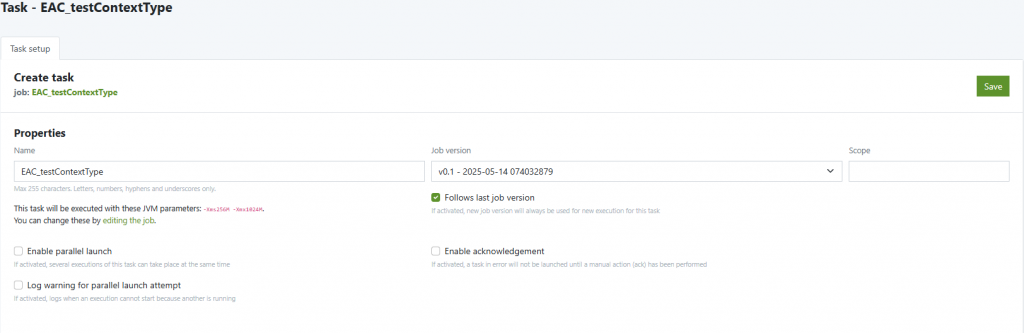
- Then in Task setup, choose Job version, select a Context (see Contexts), optionally enable context overloading and add overrides.
- By default, the task name inherits the job name. Rename it if needed for better tracking.
- (Optional) Configure Scheduler, Notifications, Ack, and Purge.
- Save.
Tip: Prefer contexts for big changes; use overrides for a small number of keys.
Run a task
- From the task page (Task setup), click Launch the task.
- From the Tasks list, click the Play icon in Action.
- from the job click Execute task, select your task from the dropdown menu.
⚠️ You need at least one active execution server to run tasks, see execution servers.
Track executions (per task)
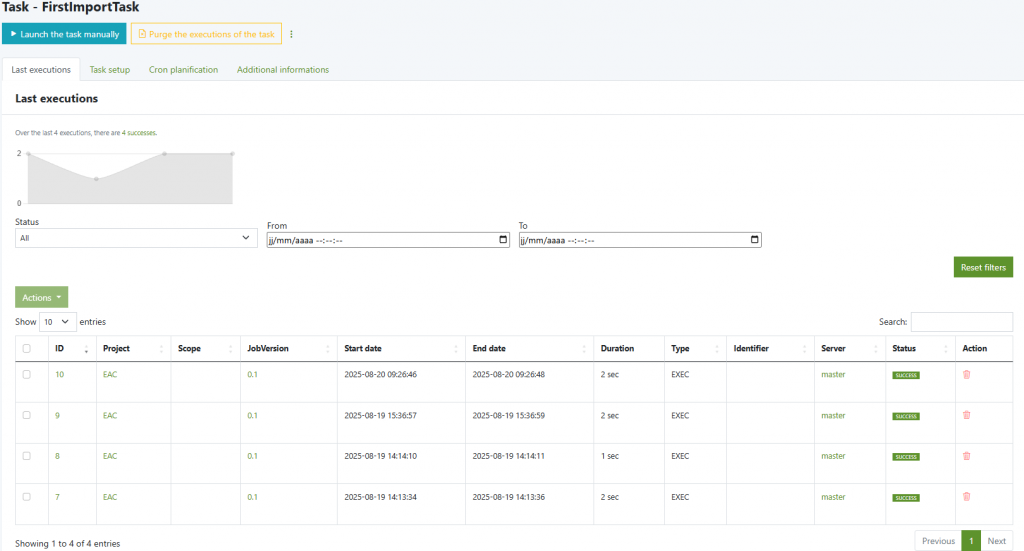
From the Tasks list, click the task ID to open the Last executions tab:
- Shows the latest 10 runs by default (use Show to display more).
- Bulk actions: select multiple runs to delete; per-row delete is also available.
- A small chart summarizes recent outcomes.
- Filters: by Status, From/To (start/end date & time).
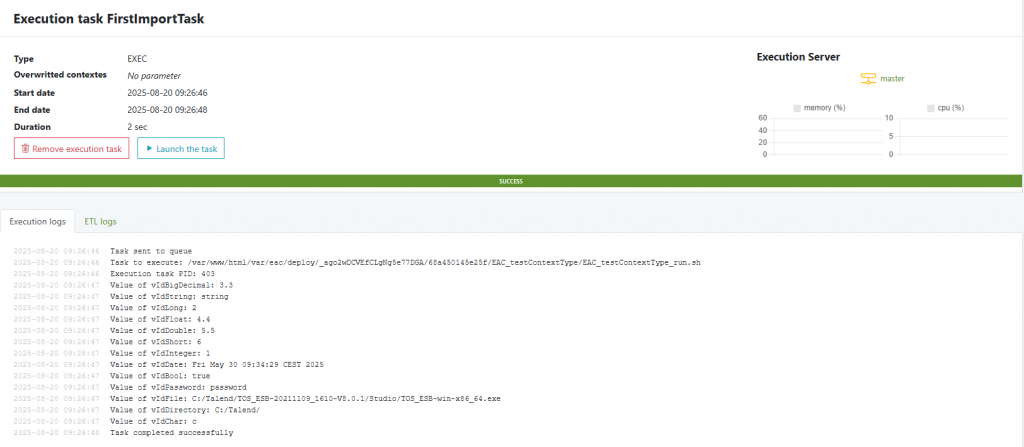
Click an execution ID to open the Execution task page:
- Live Execution logs (and ETL logs if enabled).
- Main run metadata: start/end time, duration, server, status, and effective overwritten contexts.
- Actions: Remove execution task, Launch the task (rerun).
Find & manage tasks (global list)
The Tasks page provides:
- Filters: Scope, Last exec. status, Context, Period (From/To).
- Search box, sortable columns, Reset filters.
- Row Actions: Edit, Duplicate, Delete, Play.
Modify a task
- You can change context, overrides, schedules, retry policy, notifications, and purge at any time.
- Changes to context affect the next executions; ongoing runs keep the context they started with.
- Changing job version mid-stream is allowed; consider duplicating the task (see above) to A/B test versions safely.
⚠️ Heads-up – Scheduling vs “Currently planned”: The list shows Currently = true
only when a run is due within the look-ahead window. A future Friday schedule will show false
until we approach that time; check Next run to confirm it’s correctly planned.
Duplicate a task
Use Duplicate when:
- You want the same pipeline with a different context (e.g.
QA→Prod) - You want to test a new Job Version or tweak overrides without touching the original
- You want a different schedule or purge policy for the same job
procedure:
- From the task page (Task setup) click the kebab menu (⋮) → Duplicate task.
- Or from the Tasks list, use the Copy icon in the Action column.
By default the new task is named with a suffix: _copy, _copy_2, etc. Rename it if needed.
Copied: job/version, context + overrides, notifications, purge, acknowledgement.
Not copied: execution history, schedules.


