
Executions
An execution is a single run of a task.
- A task can have many executions over time (manual runs, schedules, API triggers).
- A task belongs to a job; a job can expose multiple tasks (e.g., different contexts).
Where to view executions
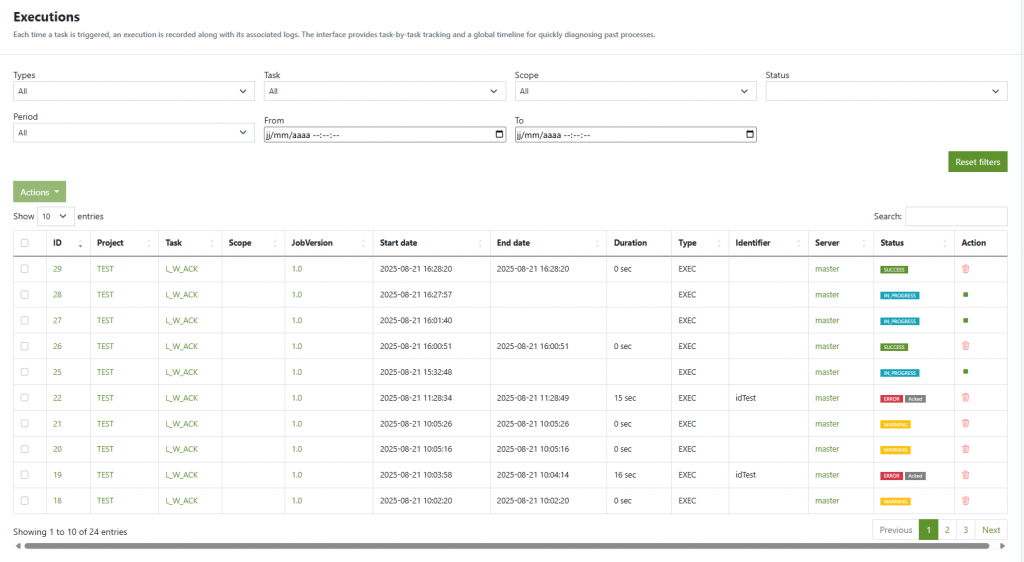
- Global list: Executions page — shows all executions mixed together across projects/tasks.
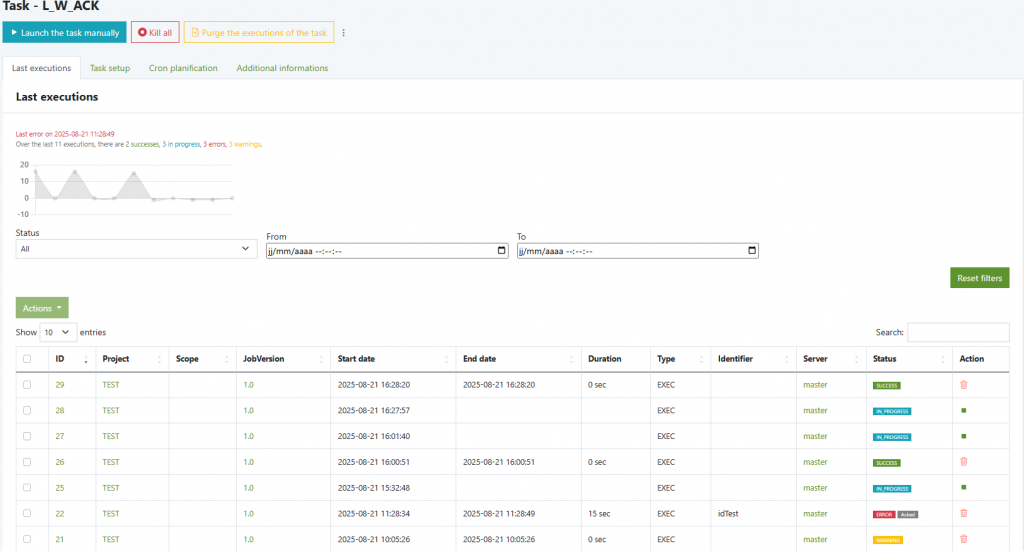
- Per-task view: Task › Last executions tab — shows only the executions of the selected task.
Filtering & search
- Global list filters: Type (trigger source), Task, Scope, Period or From/To, Status + free-text Search.
- Per-task filters: Status + From/To date range.
- Use Reset filters to clear the current selection.
Columns (what you see)
- ID – unique execution id.
- Project – project of the job.
- Task – task name.
- Scope – logical scope/environment.
- JobVersion – job version used for this run.
- Start date / End date – timestamps of the run.
- Duration – computed wall time.
- Type – trigger source (e.g., manual/scheduled/API; displayed as
EXEC). - Identifier – optional business id passed to the run.
- Server – worker that executed the task.
- Status –
IN_PROGRESS,SUCCESS,WARNING,ERROR(can be Acked).
Actions
- Per execution:
- View details/logs.
- Delete the execution record (and associated logs).
- Acknowledge errors (mark as Acked) when applicable.
- Bulk (selection + Actions menu): apply operations to multiple executions at once (e.g., delete, acknowledge).
- Per task (top toolbar in task view):
- Launch the task manually.
- Kill all (terminate current in-progress executions of this task).
- Purge the executions of the task (clean historical executions per your purge policy).
At-a-glance (task view)
- A small sparkline summarizes the most recent runs.
- Status badges are color-coded; in-progress items can be terminated; acknowledged errors remain visible but are flagged as Acked.


