
Explanation of Acknowledgement (Ack)
When Enable acknowledgement is turned on for a task, any failed execution must be manually acknowledged before the task can be launched again (manually or by the scheduler). This prevents blind relaunches and “error loops.”
How it works
- If the last execution ended in ERROR, the task is marked Not acked.
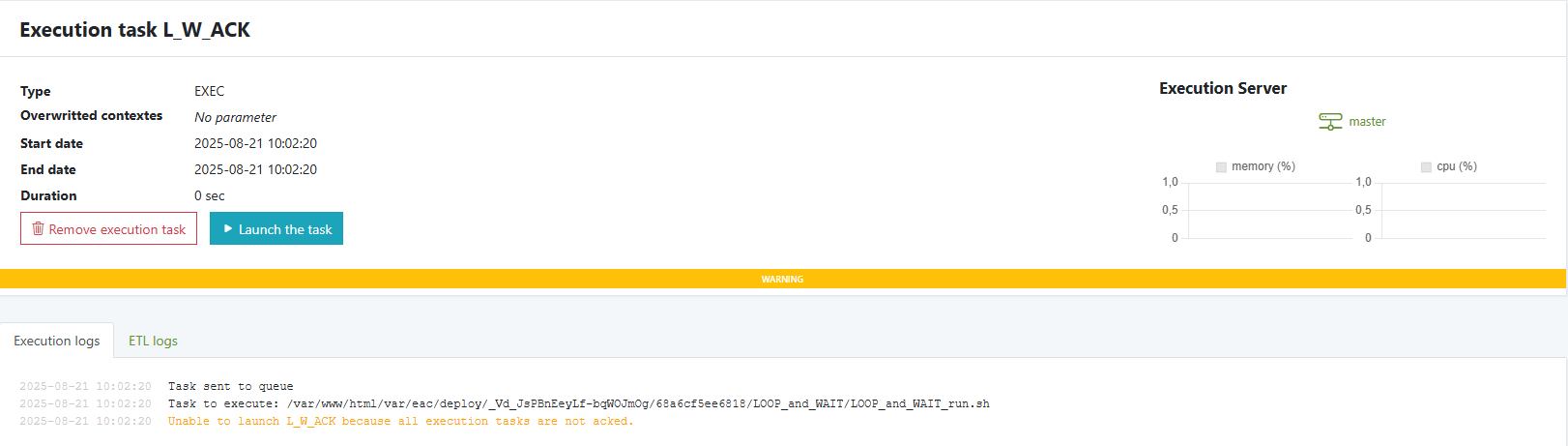
- While Not acked, any attempt to launch the task is blocked and a warning appears, e.g.: Unable to launch
<task>because all execution tasks are not acked. - Once you Ack the failed execution(s), the task becomes launchable again.
- Ack does not rerun the task; it only clears the block so you can run it.
Scope: Ack state is stored centrally and applies across all servers/nodes.
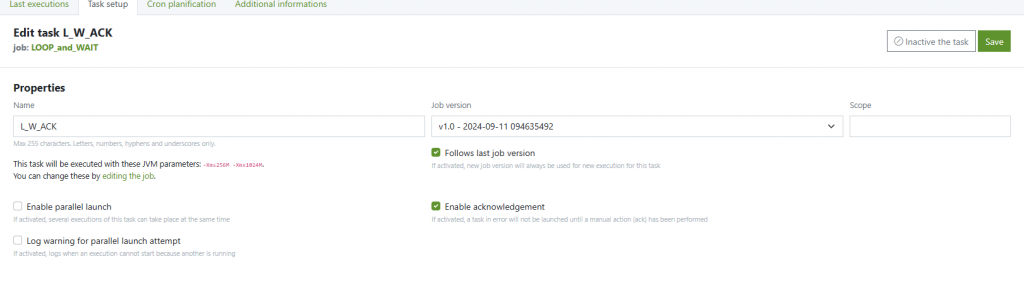
Enable acknowledgement for a task
- Open the task: Tasks → {Your Task}
- Task setup tab → check Enable acknowledgement → Save.
- UI hint: “If activated, a task in error will not be launched until a manual action (ack) has been performed.”
Where you can Ack
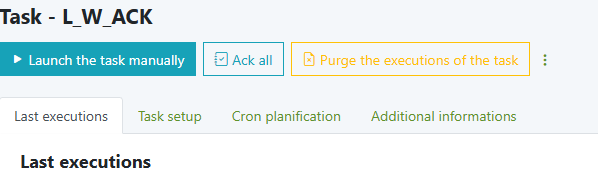
You can acknowledge a single failed execution (Ack) or all failed executions of a task (Ack all):
- Task detail page (bulk for that task)
- Icon: Ack all (top action bar)
- Path: Tasks → {Task}

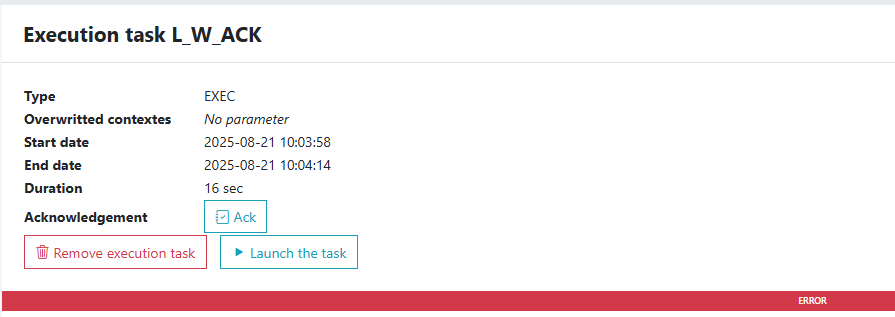
- Execution detail page (individual execution)
- Icon: Ack
- Path: Tasks → {Task} → Last executions → click an execution

- button: Ack all
- Task execution page
- path:Tasks → {Task} → Last executions → Top action buttons
- Task execution log page
- Button: Ack (logs for that task)
- Path:Tasks → {Task} → Last executions → Top action buttons
Same actions are available In task list and execution list
What you’ll see in the UI
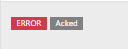
- Status chip:
ERROR+Not ackedon failed, unacknowledged executions.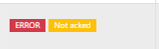
- Warning banner when try to launch while ack button not triggered.
- After Ack: the
Not ackedlabel disappears replaced by acked label if « ack » button triggered ; the task can be launched.
Typical workflow
- A task run fails → shows ERROR and Not acked.
- Investigate: open Execution logs (and ETL logs if enabled).
- Fix the root cause (config, data, path, permissions, etc.).
- Click Ack (or Ack all).
- Relaunch the task (manually or wait for scheduler).
Troubleshooting
| Symptom | Cause | Resolution |
|---|---|---|
| “Unable to launch … because all execution tasks are not acked.” | Last execution ended in ERROR and task requires ack | Click Ack on the failed execution or Ack all on the task |
| I acked but still can’t run | A newer failed execution also requires ack | Ack the most recent failed execution(s) |
| Button missing | Permissions or you’re viewing a completed (non-error) run | Use an account with task admin rights and select an ERROR execution |
| It keeps failing after ack | Root cause not fixed | Review Execution logs / ETL logs, fix, then ack and relaunch |
Related
Settings — verify paths, Java/PHP binaries, and permissions if launches fail immediately.on of the acknowledgment mechanism and its use cases
Monitoring — identify failing nodes or resource issues.
Email notifications — enable mailer to receive error alerts.


